


ダウンロード
最新バージョン : 2.1.0-RELESE
| 2.1.0-RELESE | ダウンロードページ |
OpenRTM@Github
OpenRTM-aist GitHubサイト
ROS
Robot Operating System
Choreonoid
モーションエディタ/シミュレータ
DAQ-Middleware
ネットワーク分散環境でデータ収集用ソフトウェアを容易に構築するためのソフトウェア・フレームワーク
産総研が提供するRTC集
東京オープンソースロボティクス協会
| 2.1.0-RELESE | ダウンロードページ |
OpenRTM-aist GitHubサイト
Robot Operating System
モーションエディタ/シミュレータ
ネットワーク分散環境でデータ収集用ソフトウェアを容易に構築するためのソフトウェア・フレームワーク
産総研が提供するRTC集
東京オープンソースロボティクス協会
Launch RT System Editor
Launch your "All-In-One eclipse" and please select "RT System Editor" perspective.
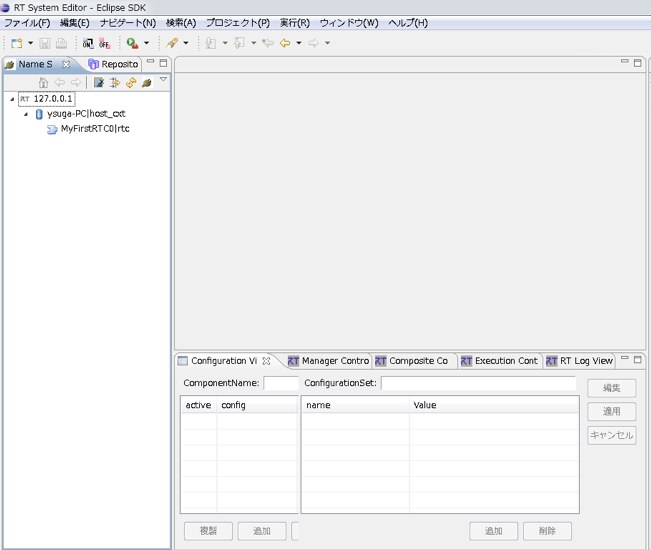
(Menu >> Window >> Perspective >> RT System Editor)
Connect to Name Service
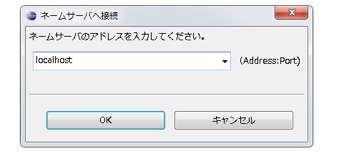
Please connect Naming Service if your RT System Editor do not indicated executing Naming Service (you might see "localhost").
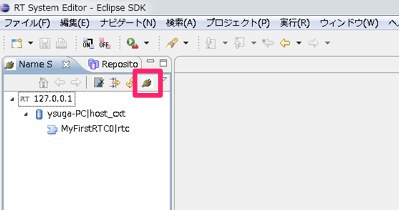
Press "Add Name Server" button
Input your Name Server's IP Address (usually, localhost).
Visualize your RTC
Open "RT System Editor view" by pressing the following button.
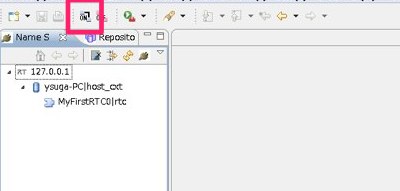
Open your Name Server's tree, and drag & drop the RTC to the opened editor pane.
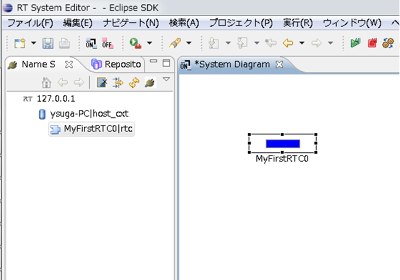
Activate your RTC
Right click your RTC and select "Activate" menu from the drop-down menu.
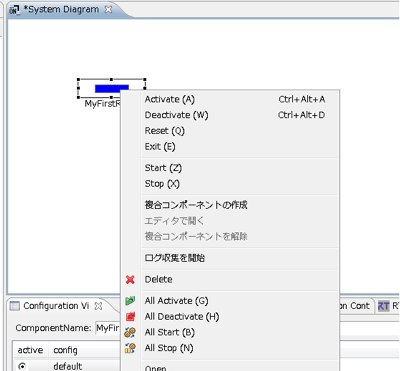
Your RTC will become "GREEN" from "BLUE". The GREEN colored RTC means the RTC is in "ACTIVE" state.
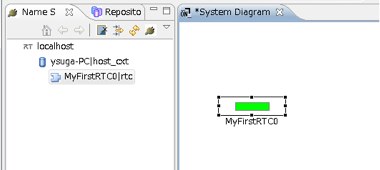
The BLUE RTCs are in "INACTIVE" state.
If you watch RED RTCs, they are "ERROR" state.
The RT System Builder can send the trigger to change the RTC's state machine.
When your RTC changes to "ACTIVE" state from "INACTIVE" state, the "onActivated" function is called, so the RTC's console will output some messages in our example.
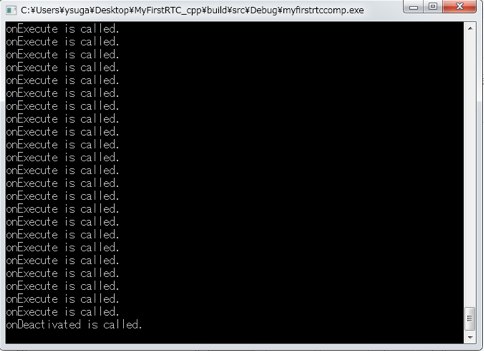
In ACTIVE state, onExecute function is periodically called.
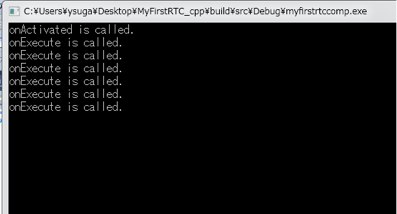
You will see the following message in your console window of the RTC.
If you "deactivate" your RTC, the "onDeactivated" will be called on the contrary.
The RTC's parameters (ex., onExecute's period) can be customized by rtc.conf file.
Please proceed in the next step.
Documentation: