Installing RT System Editor
Installing RT System Editor
Because RT System Editor is an Eclipse plugin, it requires Eclipse to be installed. Eclipse is written in Java, so it in turn requires a Java environment to be set up before it can be installed (such as the JDK).
Installing the Java Runtime Environment (JRE)
Before installing Eclipse, install a suitable Java, such as Sun's Java Runtime Environment (JRE). If you already have a Java Development Environment (JDK) version 1.6 or above installed, there is no need to install a separate JRE. (If you will be generating Java code using RTC Builder, you will need to have a JDK installed; the JRE will not be sufficient.)Follow the displayed instructions to install after downloading.
Installing Eclipse
Download an Eclipse archive suitable for your platform from the Eclipse Download Site and install it. The recommended version for RT System Editor is Eclipse v3.2. Eclipse is also mirrored on the below ring servers, so it can also be downloaded from here.- Ring Server Project
- AIST Ring Server (Versions 3.2 and later)
- RIKEN Ring Server (Versions 3.2 and later)
- Eclipse Project archived downloads(Previous versions archive)
If you are in a hurry and can handle the Japanese versions of Eclipse and the tools, you can download all-in-one packages for Windows and UNIX from here. These include Eclipse, RT System Editor, RTC Builder, and all required Eclipse plugins. Download one and follow the installation instructions below.
Installation
The compressed Eclipse archive is 100MB or more. Extract its contents into the directory you wish to install Eclipse into. There is no installer for Eclipse. Start it by running the eclipse.exe executable on Windows, or the eclipse binary on UNIX.
Installing RT System Editor
RT System Editor uses the following Eclipse plugins.- EMF (Eclipse Modeling Framework)
- GEF (Graphical Editing Framework)
- XSD (XML Schema Infoset Model)
- SDO (EMF Service Data Objects)
Be sure to install these before installing the RT System Editor plugin.
From the Eclipse Help menu, choose Software Updates... and then Find and Install. A dialog similar to that shown below will be displayed.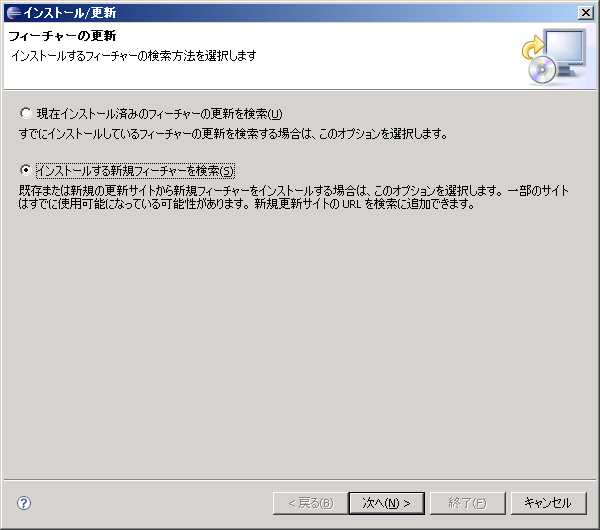
To install a new plugin, check Find new features to install and click Next.
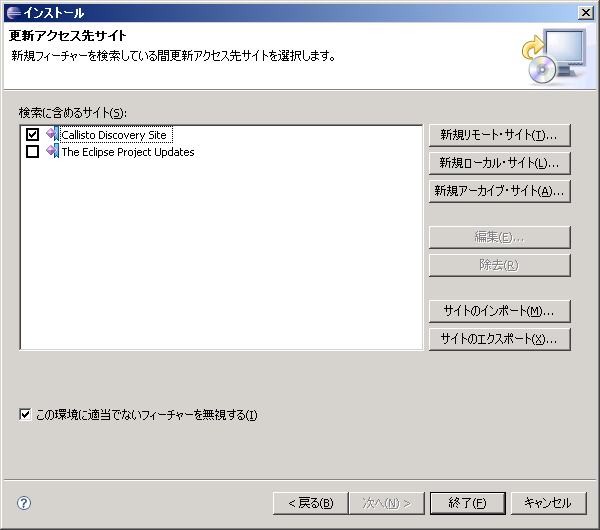
Choose the Callisto Discovery Site and click Finished.
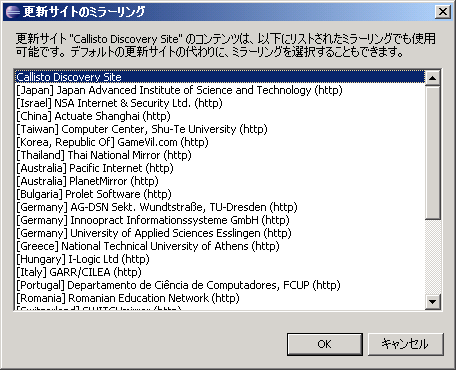
Click on Callisto Discovery Site and click OK.
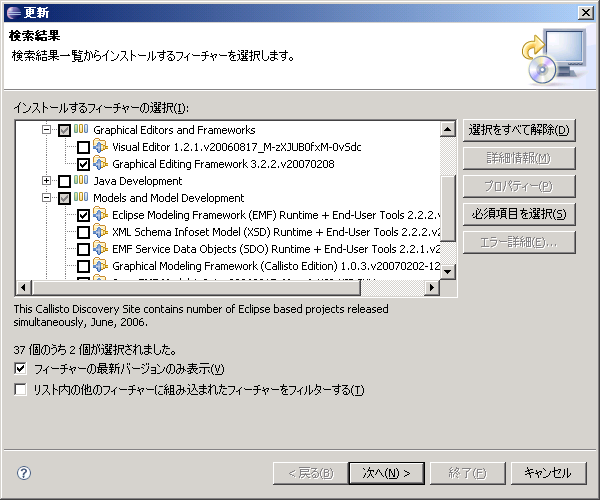
Select the following plugins, then click Next:
- Graphical Editing Framework
- Eclipse Modling Framework Runtime
- XML Schema Infoset Model(XSD) Runtime
- EMF Service Data Objects(SDO) Runtime The plugins will be downloaded and installed automatically. After installation, Eclipse will restart.
Next, download the RT System Editor plugin and copy the jar files into the Eclipse plugin directory. This is a directory called plugin below the eclipse directory in the location you extracted the Eclipse archive to.
Start Eclipse and select Open Perspective->Other from the Window menu. The perspective selection dialog will be displayed.
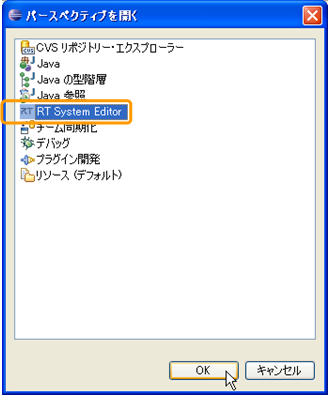
Select RT System Editor from the list to open its perspective.
If RT System Editor is not available in the list of perspectives, check that EMF, GEF and XSD are all correctly installed, and that the RT System Editor plugin is in the correct directory.
Restart Eclipse
After confirming that RT System Editor starts, restart Eclipse using the same workspace. RT System Editor should be displayed as it was when you exited Eclipse.
